TheStrat Suite · Setup Screener

Setup Screener.
A free Strat scanner in TradingView.

A free, open source Strat scanner built on TradingView's own Pine Screener. TradingView runs the scan; the Setup Screener supplies the Strat: candle types, signals and timeframe continuity for every symbol in a watchlist or an index.

Free & open source · MPL-2.0 Runs in TradingView Pine Screener
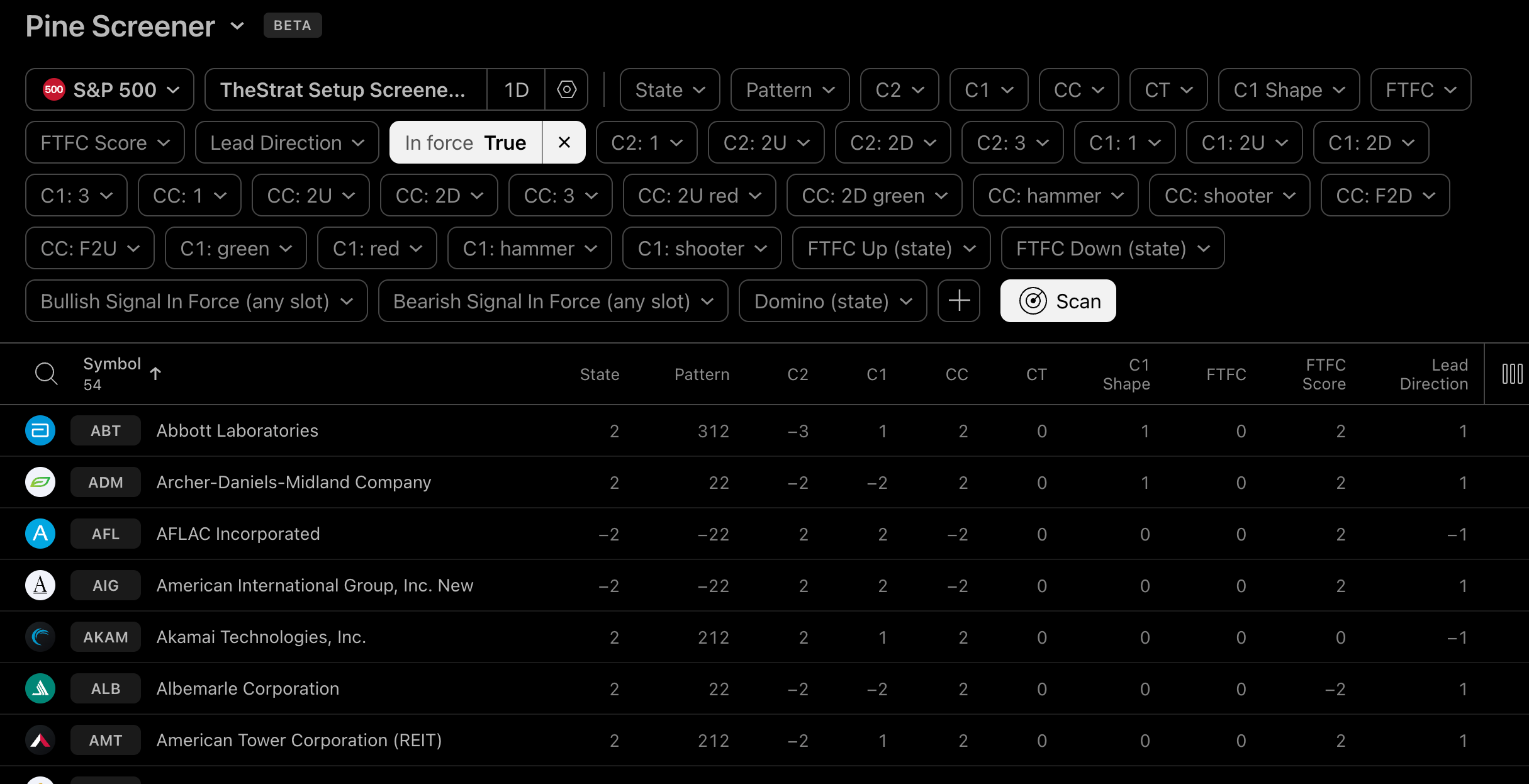
Pine Screener running the Setup Screener, a free Strat scanner, on the S&P 500 at 1D with the In force filter on: 54 symbols, each with its State and Pattern code, such as 312 and -22
What it screens

Candles, signals and continuity.

The scanner reads the timeframe you pick: a 1D scan reads the daily candles, a 1W scan the weekly. Six timeframe slots add the higher-timeframe picture.

Candles by name

C2, C1 and the current candle as inside, 2U, 2D or outside. A 2U that closed red, a 2D that closed green. Hammers and shooters on C1 and on the current candle, and failing 2s in either direction.

C1: 1CC: 2UCC: 2D greenC1: hammerCC: shooterCC: F2D

Signals

Whether a signal is in force, bullish or bearish, or still a potential waiting on its trigger. The combo as a number you can filter on, such as 212 or 22. The largest timeframe with a signal in force, with its distance to the magnitude target.

In forceStatePatternLead DirectionNearest Setup %

Continuity

Full Timeframe Continuity across up to six timeframes, a score for partial continuity, Domino runs, and the candle type and open position for each timeframe slot.

FTFC Up (state)FTFC ScoreDomino (state)S4 Type

36 columns · 28 named filters · same engine as the Suite on a chart

Filters

Two kinds of filter.

Named filters are on or off. Number columns take a comparison and a value, which is how you pick a direction: State = 2 keeps bullish signals in force, State = -2 bearish.

The Pine Screener filter bar with the Setup Screener's named filters, and the CC: 2D green filter open with its single option, True
Named filter: click the chip, choose True.
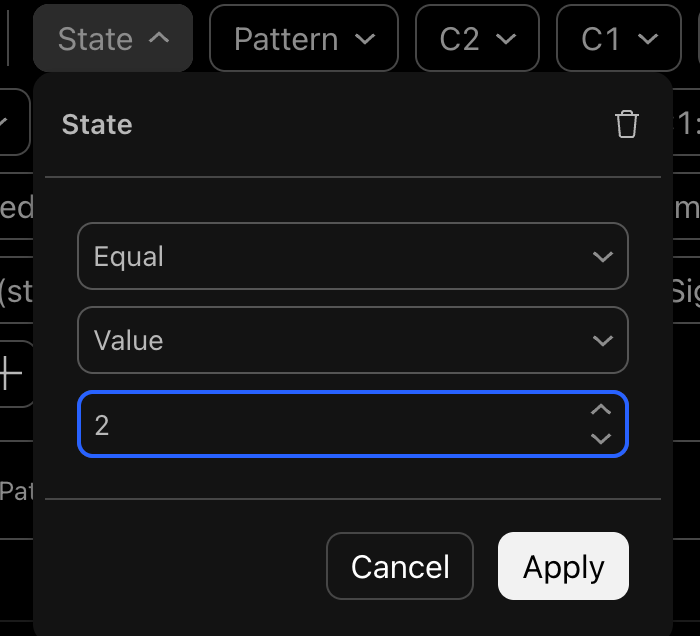
The State filter set to Equal, Value, 2
Number column: State equal to 2.
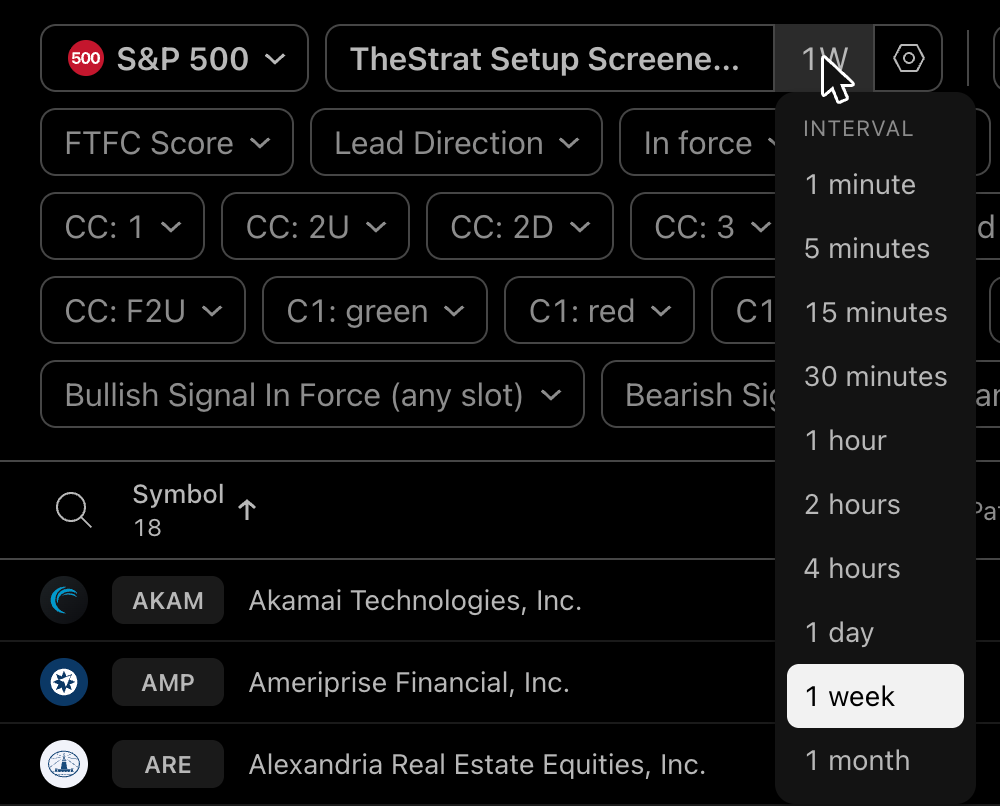
The Pine Screener timeframe menu, from 1 minute to 1 month
The timeframe menu picks the candle you screen.
How a scan works

Five steps, then it's one click.

Pine Screener remembers the indicator and the symbol list, so after the first scan you only change filters and press Scan. To check a result, open it on a chart: the match card lists the filters it matches.

  1. Open Pine Screener. Products, then Screeners, then Pine.
  2. Choose the symbols. An index such as the S&P 500, NASDAQ 100, Dow 30 or Russell 2000, or one of your watchlists.
  3. Add TheStrat Setup Screener from the Indicators dialog.
  4. Pick the timeframe. 1D screens the daily candles, 1W the weekly.
  5. Set filters and press Scan. Change anything and scan again.
Good to know

What Pine Screener allows.

Start here

Read the guide, then scan.

Setup, every column, every filter, the settings, and recipes for the scans people run most.