Setup Screener
Setup Screener guide
The Setup Screener is a free Strat scanner for TradingView. It adds the Suite's columns and filters to TradingView's own Pine Screener, so you can scan a watchlist or an index for Strat setups instead of one chart at a time. This guide covers setup, every column and filter, recipes for common scans, and the settings. It describes version 0.5.0.
New here: read Set up a scan, then try a few recipes. The rest is reference.
Before you start
- A TradingView Premium plan or higher. Pine Screener is a paid-plan feature.
- No setup inside the script. The defaults work. Change settings only to match how you run the Suite on a chart.
- Scans run when you press Scan. Pine Screener doesn't schedule scans or run them in the background.
The screener reads the same bar types, signals and continuity rules as the Suite. If those terms are new, start with Bar Types and Signals.
Set up a scan
- Open Pine Screener. In TradingView, choose Products, then Screeners, then Pine.
- Choose the symbols. The source menu has two tabs. Index lists the S&P 500, NASDAQ 100, Dow 30, Russell 2000, sector indices and more. Watchlist lists your own watchlists. One source is active at a time.
- Add the Setup Screener. Click the indicator chip and pick TheStrat Setup Screener from the Indicators dialog. It doesn't need to be a favorite, but a favorite shows at the top of the list: open its TradingView page and add it to favorites.
- Pick the timeframe. This is the candle you screen, called the focus. A 1D scan reads the daily candles and a 1W scan the weekly. Any timeframe slot smaller than it is ignored.
- Set filters and press Scan. After any change, press Scan again. TradingView shows a Rescan prompt as a reminder.
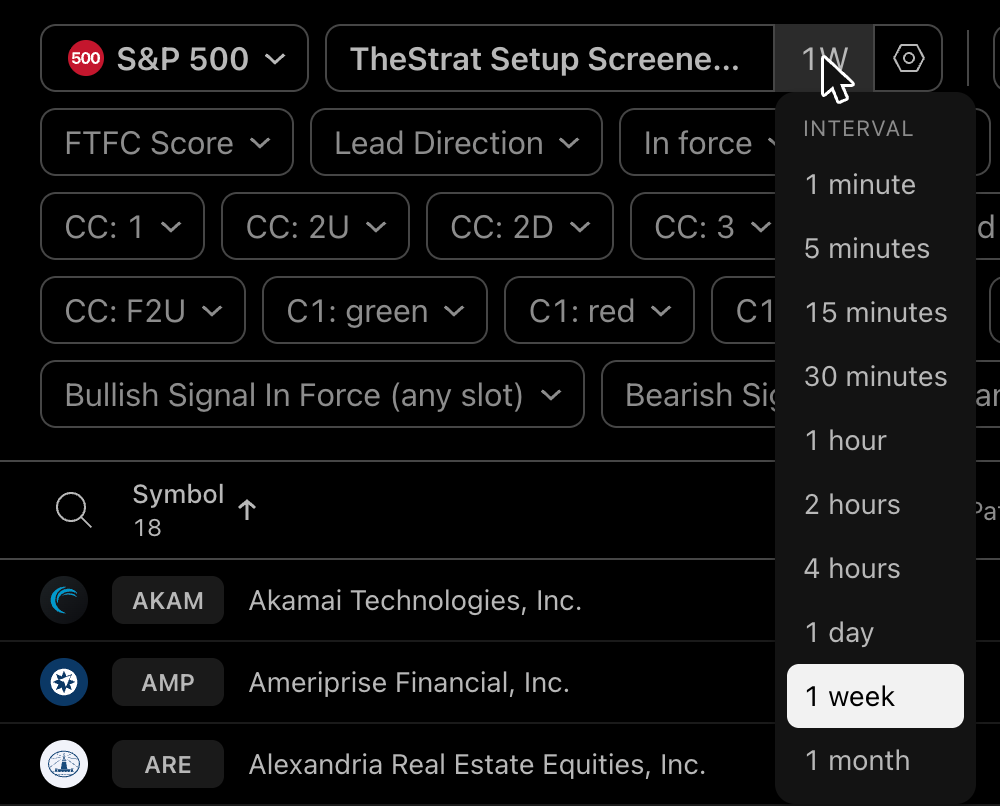
Pine Screener remembers the source and the indicator, so later scans start at step 4 or 5.
Reading the results
Every column follows one sign rule: positive is bullish, negative is bearish, 0 is none or conflict. The one exception is a potential (State 1), which has no direction until it triggers. Code columns show whole numbers, so a 2D reads -2.
The first ten columns show by default. Add the rest from the column menu at the right end of the header row.
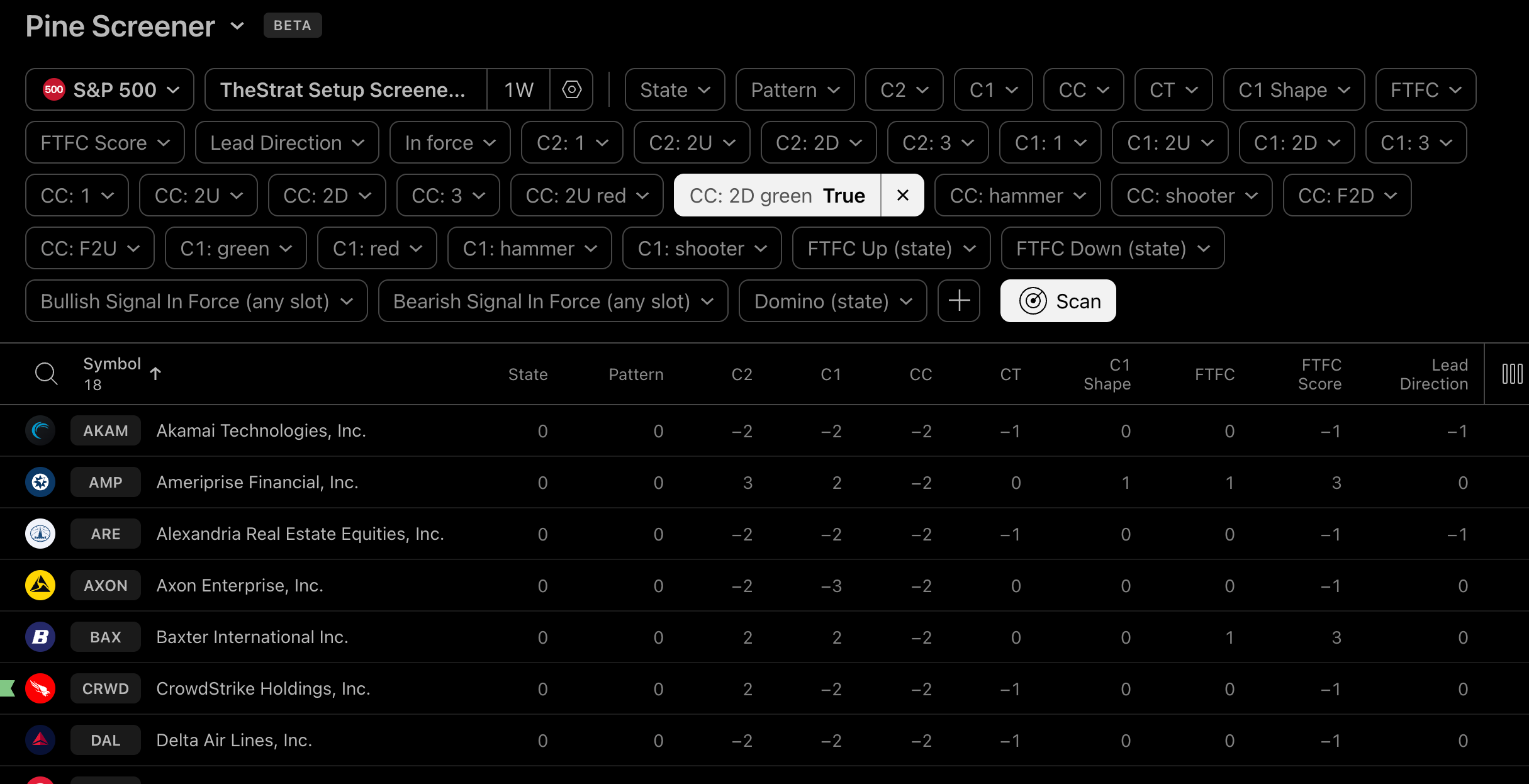
Focus columns: the screen's own timeframe
| Column | Values | Meaning |
|---|---|---|
| State | 2, -2, 1, 0 | 2 = bullish signal in force, -2 = bearish in force, 1 = potential (CC is inside, a setup is drawn, the trigger is untouched, and it can break either way), 0 = none. |
| Pattern | signed code | In force: the signal's combo, signed. Potential: the unsigned shape it would complete, such as 212 for a 2-1 or 312 for a 3-1. See Pattern codes. |
| C2 | 1, ±2, ±3 | The candle before C1: 1 inside, 2 = 2U, -2 = 2D, 3 = 3 closing up, -3 = 3 closing down. A failing 2 keeps its structure, so an F2U reads 2. |
| C1 | 1, ±2, ±3 | The candle before the current one, same codes. |
| CC | 1, ±2, ±3 | The current candle, same codes. |
| CT | 1, -1, 0 | Continuation: C1 and CC are the same directional 2. 2U then 2U = 1, 2D then 2D = -1. |
| C1 Shape | 1, -1, 0 | C1 is a hammer (1) or a shooter (-1), by the Hammer/Shooter settings. |
| C1 Color | 1, -1 | C1 closed above its open (1) or not (-1). A doji counts red. |
Continuity and the Lead
| Column | Values | Meaning |
|---|---|---|
| FTFC | 1, -1, 0 | Full Timeframe Continuity across the counted slots: up, down, or conflict. A slot counts up when its current candle closes above its open. A doji counts down. |
| FTFC Score | -6 to 6 | Counted slots above their open minus slots below. Equals the number of counted slots at full bullish continuity. |
| Lead Direction | 1, -1, 0 | Direction of the largest timeframe with a signal in force. |
| Lead Pattern | signed code | That signal's combo. 0 when there is no Lead. |
| Lead TF (min) | minutes | The Lead's timeframe: 60 = 1H, 240 = 4H, 1440 = D, 10080 = W, 43200 = M, 129600 = Q, 518400 = Y. |
| Lead Magnitude R | R multiple | Distance to the magnitude target in risk units: (magnitude - trigger) / (trigger - stop). The stop is the current candle's opposite extreme. Blank when no magnitude is ahead. |
| Nearest Setup % | signed % | The closest untriggered trigger among slots whose current candle is inside with a setup drawn. +0.4 = a bullish trigger 0.4% above price, -0.4 = a bearish trigger 0.4% below. |
| Nearest Setup TF (min) | minutes | The slot that trigger belongs to. |
| Domino | signed count | Consecutive inside-bar slots with a setup, largest first. 0 below the Domino minimum. |
| Net In Force | -6 to 6 | Slots with a bullish signal in force minus slots with a bearish one. |
Lead Magnitude R is information, not a tested edge. In the project's own research, filtering on room to the target added nothing over continuity alone.
Slot columns
| Column | Values | Meaning |
|---|---|---|
| S1 to S6 State | 2, -2, 1, 0 | Same codes as State, for each slot. |
| S1 to S6 Type | 1, ±2, ±3 | Each slot's current candle, same codes as CC. |
| S1 to S6 Above Open | 1, -1 | Each slot's current candle above its open or not. |
S1 to S6 follow the slot order in the settings. Column titles can't show the timeframe, so keep a note of your slots. With the defaults, S1 = 30m, S2 = 1H, S3 = D, S4 = W, S5 = M and S6 = Q. On a 1D scan, the focus columns match S3.
Pattern codes
Pattern and Lead Pattern write the combo as a number, signed by direction.
| Shape | Code | Examples |
|---|---|---|
| C1 is inside | C2, C1 and CC digits | 212 (2-1-2), 312 (3-1-2), 112 (1-1-2), 213 (2-1-3) |
| Anything else | C1 and CC digits | 22 (2-2), 32 (3-2), 23, 33 |
| CC is a failing 2 | 1000 + the two-digit pair | 1012 (1-F2), 1022 (2-F2), 1032 (3-F2) |
So -212 is a bearish 2-1-2. A failing 2 just adds 1000: a 2-2 is 22 and a 2-F2 is 1022. There are only three failing-2 codes, 1012, 1022 and 1032, and a minus sign makes them bearish. To find failing 2s without codes, use the CC: F2D and CC: F2U filters. A potential is unsigned: Pattern = 212 with State = 1 is a 2-1 waiting for its trigger.
Filters
Named filters
Screener columns can only hold numbers, so each candle state is also a named filter. Click the chip and choose True.

| Group | Filters |
|---|---|
| Signal | In force (either direction; State shows which) |
| C2 | C2: 1 C2: 2U C2: 2D C2: 3 |
| C1 | C1: 1 C1: 2U C1: 2D C1: 3 C1: green C1: red C1: hammer C1: shooter |
| CC | CC: 1 CC: 2U CC: 2D CC: 3 CC: 2U red CC: 2D green CC: hammer CC: shooter CC: F2D CC: F2U |
| States | FTFC Up (state) FTFC Down (state) Bullish Signal In Force (any slot) Bearish Signal In Force (any slot) Domino (state) |
CC: F2D and CC: F2U follow the Failing 2 Detection setting. With the default, Reclaim, the current candle broke C1's low (F2D, bullish) or high (F2U, bearish), then closed back inside C1's range.
A 2U or 2D is by structure, so CC: 2D includes a 2D that closed green. Colors use the FTFC rule: a doji counts red. These filters are states, true for as long as the condition holds, which is what a screen asks.
Number filters
Every column is also a number filter. Pick a comparison, enter a value and press Apply.
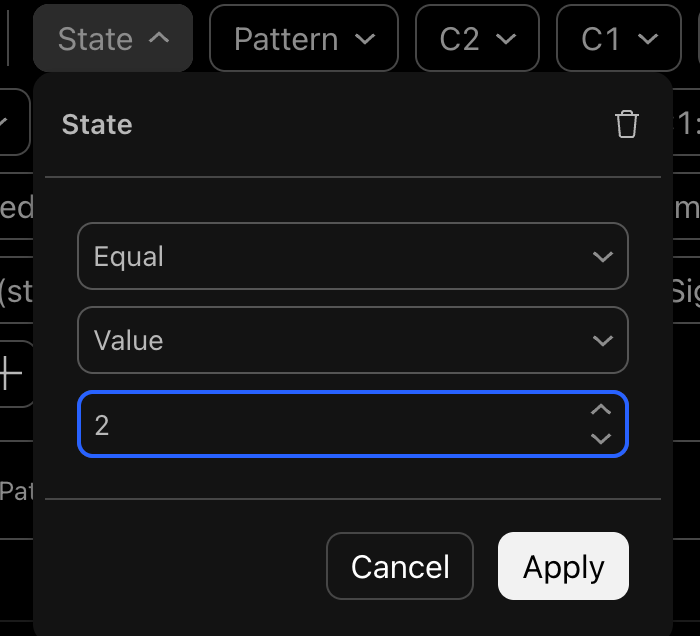
The comparisons are Above, Above or equal, Below, Below or equal, Equal, Between, Outside, Crosses, Crosses up and Crosses down. Use the value comparisons. The screener only fills the last bar, so the Crosses options have no history to compare against.
Pine Screener ignores a number filter left at its default. Change the comparison or the value before you press Apply.
Combining filters
Filters combine with AND: a symbol has to pass all of them. There is no OR between chips, so "C2 is a 2U or a 2D" can't be two chips. Use the signed number columns instead: Pattern = 212 covers 2U-1 and 2D-1 setups together, and State = 2 or -2 picks one direction.
Recipes
Set the timeframe first. Each recipe describes the screen's own timeframe unless it names a slot.
| Scan | Filters |
|---|---|
| Weekly 2D that closed green | 1W, CC: 2D green |
| Same, and the candle is a hammer | 1W, CC: 2D green, CC: hammer |
| Weekly 2U that closed red | 1W, CC: 2U red |
| 1-2U: inside, then up | C1: 1, CC: 2U |
| 2-1 waiting for its trigger | State = 1, Pattern = 212 |
| Bullish 2-1-2 in force | State = 2, Pattern = 212 |
| Any signal in force | In force |
| Bullish signal in force with full continuity | State = 2, FTFC Up (state) |
| Fresh triggers only | add CT = 0 |
| Hammer trigger candle | C1: hammer |
| Failing 2D, bullish reclaim | CC: F2D |
| Failing 2U, bearish reclaim | CC: F2U |
| 2-1 setup with a green trigger candle | C2: 2U or C2: 2D, C1: 1, C1: green |
| Full continuity up | FTFC Up (state) |
| Daily or larger signal in force, bullish | Lead Direction = 1, Lead TF (min) ≥ 1440 |
| About to trigger | Nearest Setup % between -0.3 and 0.3 |
| Domino | Domino (state) |
| Weekly bullish in force, daily inside (1D scan) | S4 State = 2, CC = 1 |
| Weekly inside bar from a daily scan | S4 Type = 1 |
Slot recipes assume the default slots. If you change them, change the slot number too.
On a chart
Add the Setup Screener to a chart to check a scan result. It sits on the price chart and draws only a match card and three candle tags. Its columns show in the data window and in Pine Screener, not as lines.
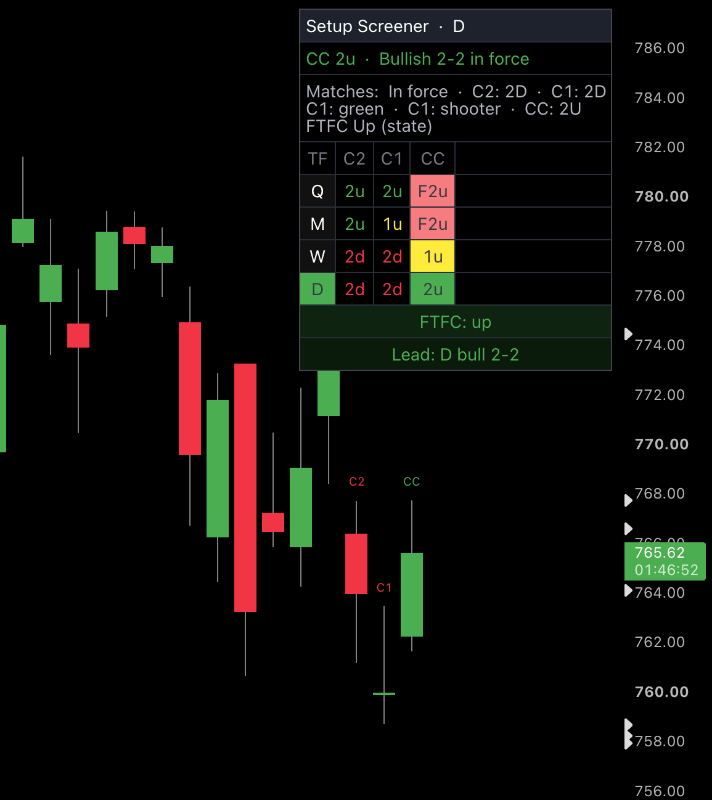
- The first line is the chart timeframe's current candle and signal, such as
CC 2u · Bullish 2-2 in force. - Matches lists the named filters the symbol passes right now. Open a scan result at the scan's timeframe and its filters show here.
- Timeframe rows show C2, C1 and CC for each slot, largest first. A highlighted timeframe has a signal in force. Slots smaller than the chart get no row.
- FTFC and Lead close the card: continuity across the slots, and the largest timeframe with a signal in force.
- Tags mark the C2, C1 and CC candles, colored by candle type. Hover a tag for its type.
The card moves to any corner in the Display settings. If it covers the newest candles, drag the chart left to make room on the right, or move the card.
Settings
Open the settings with the gear beside the timeframe. All 37 settings have working defaults. They mirror the Suite's, so a scan agrees with the Suite on a chart when both use the same values.
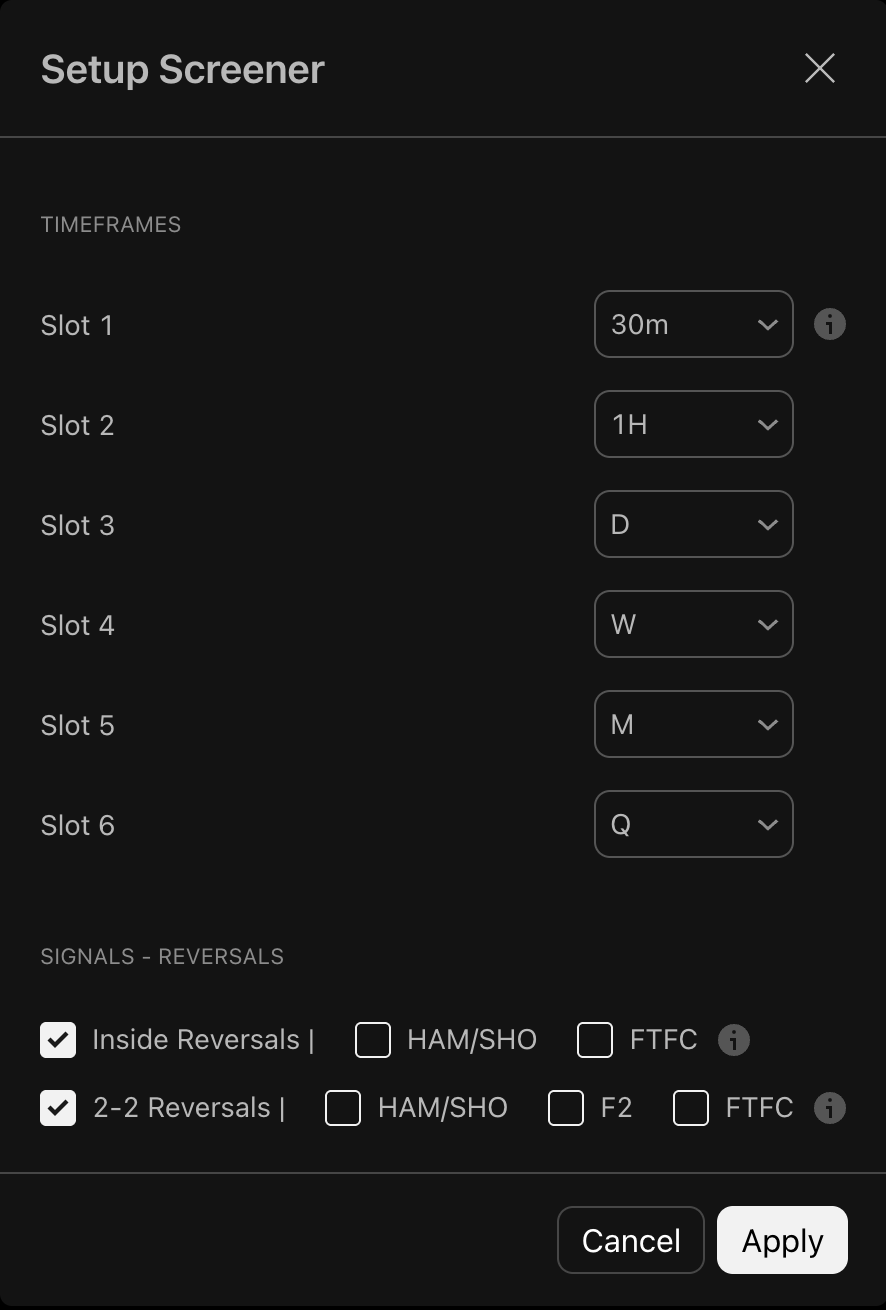
Timeframes
Six slots, defaulting to 30m, 1H, D, W, M and Q. Each can be Off or any of 1m, 5m, 15m, 30m, 1H, 2H, 4H, D, W, M, Q and Y. List them from smallest to largest. Pine Screener serves 1 minute to monthly, so Q and Y are built from monthly bars. A slot smaller than the screen's timeframe is ignored and leaves its columns blank.
Signals
Each signal family has an on/off switch and optional conditions. The families and their conditions are explained in the Suite's Signals docs.
| Signal family | Default | Conditions you can add |
|---|---|---|
| Inside Reversals | On | HAM/SHO, FTFC |
| 2-2 Reversals | On | HAM/SHO, F2, FTFC |
| Inside Continuations | On | HAM/SHO, FTFC |
| 2-2 Continuations | Off | HAM/SHO, FTFC |
| Failing 2s (Range Reclaims) | Off | FTFC |
| 3-2 Expansions | Off | HAM/SHO, FTFC |
| Outside Bars (3 Exp) | Off | FTFC |
HAM/SHO requires C1 to be a hammer for a bullish signal or a shooter for a bearish one. FTFC requires full continuity in the signal's direction. F2 requires C1 to have been a failing 2 itself.
Hammer/Shooter
Definition chooses Broad (the default), Classic or Pin Bar. Match Candle Color (off by default) also requires a hammer to close green and a shooter to close red. Both apply to every hammer and shooter column and filter. See Hammers and shooters.
Domino
Minimum Timeframes, 2 to 6, default 2. The Domino column reports a run only when it reaches this many timeframes.
Advanced
| Setting | Default | Effect |
|---|---|---|
| Exhaustion Disables 'In Force' | Off | A signal stops counting as in force once price reaches its exhaustion level. |
| Enable Failing 2 Detection | On | Classifies failing 2s everywhere, including the CC: F2D and CC: F2U filters. The Failing 2s signal toggle decides whether they trade. |
| Detection Method | Reclaim | Reclaim, Open, Reclaim + Open, or Reclaim OR Open. See Bar Types. |
Display
These change only what a chart shows. The screener ignores them.
| Setting | Default | Effect |
|---|---|---|
| Show match card | On | Draws the match card. |
| Card position | Top Right | Any corner of the chart. |
| Card text size | Normal | Small, Normal or Large. |
| Show timeframe rows | On | The card's C2, C1 and CC row for each slot. |
| Tag C2, C1 and CC candles | On | Labels the last three candles. |
Hammers and shooters
A hammer rejected its low and a shooter rejected its high. The three definitions differ in how strict they are about the wick.
| Definition | Hammer | Shooter |
|---|---|---|
| Broad (default) | Open and close both in the upper half of the candle's range. | Open and close both in the lower half. |
| Classic | Body at most 30% of the range, lower wick at least 3 times the body, upper wick at most 35% of the range, body centered in the top third, close in the top quarter. | The mirror image. |
| Pin Bar (Strict) | Open and close both in the top quarter of the range. | Open and close both in the bottom quarter. |
Broad is the loosest: it checks where the open and close sit, not how long the wick is, so it also flags candles without a long wick. For a strict long-wick read, choose Classic or Pin Bar.
Setup Screener vs. the Suite
- Timeframe slots are menus. Pine Screener serves 1m, 5m, 15m, 30m, 1H, 2H, 4H, D, W and M only, so the Suite's presets that use 12H, 3M or 12M can't run here.
- Q and Y come from monthly bars. Months are assigned to quarters and years the same way the Suite does, including futures months stamped the evening before.
- No Preview Mode. Slots always read the period in progress.
- Slots below the screen's timeframe are left out of FTFC. The Suite skips them in its table but still counts them in FTFC.
- The last bar only. Earlier bars are blank on purpose. A forming higher-timeframe candle's final high and low would leak into history, so any historical value would repaint.
- Stops use the current candle's opposite extreme, the Suite's default stop reference.
To check a symbol against the Suite, add both to the same chart with matching slots and signal settings. The match card's timeframe rows should agree with the Suite's data table on every slot at or above the chart's timeframe.
Questions
Is the Setup Screener a free Strat scanner?
Yes. It's free and open source under the MPL-2.0 license. It runs in TradingView's Pine Screener, which needs a TradingView Premium plan or higher.
The columns didn't change after an update.
Press Scan once. Pine Screener keeps the old column list until a scan runs with the new version.
A slot's columns are blank.
The slot is smaller than the screen's timeframe, or set to Off. A 1W scan ignores the 30m, 1H and D slots.
My filter isn't doing anything.
A number filter left at its default is ignored. Change the comparison or the value, press Apply, then Scan.
Can the screener alert me?
Pine Screener runs scans only when you press Scan. The named filters are also alert conditions on a chart, but they are states: an alert on one fires on every bar while it holds. For one-time alerts, use the Suite's own alerts.
A result doesn't match my chart.
Open the symbol on a chart at the scan's timeframe: the match card lists the filters it matches now. To compare with the Suite, match the screener's slots and signal settings to the Suite's, then compare the card's timeframe rows with the Suite's data table. Remember that a forming candle can change until it closes.
Can I scan 12H, 3D or quarterly bars directly?
No. Pine Screener serves 1 minute to monthly. Quarterly and yearly slots work because they are built from monthly bars.
Versions
- 0.5.0 (Oct 26, 2026). Sits on the price chart and draws no plots there. A match card with the filters a symbol matches replaces the check table, and tags mark the C2, C1 and CC candles.
- 0.4.2 (Oct 25, 2026).
CC: F2DandCC: F2Ufilters. Lead Exhaustion R and Lead C1 HAM/SHO removed to make room. - 0.4.1 (Oct 25, 2026).
CC: hammerandCC: shooterfilters. - 0.4.0 (Oct 25, 2026). Named candle filters. Code columns show whole numbers.
- 0.3.0 (Oct 25, 2026). Focus columns for the screen's own timeframe.
- 0.2.0 (Oct 25, 2026). First version that runs on a chart and in Pine Screener.